Some links in this post are affiliate links - if you buy through them I may earn a small commission, at no extra cost to you.
Why I chose Bosgame M4 Neo for LLM usage ( + other Mini PC options )
A few months ago I decided local LLMs are getting so good, I wanted to be able to run them locally. Not only to save money in the long term with tokens or subscriptions, but because it unlocked a range of projects that contained data I wouldn’t be comfortable moving off my device. For example, financial data: I made a personal finance assistant that now tracks all my spending & net worth. Another common example is triaging your email inbox.
Because I love a deal, extensive research went into the goal of: running 35b-class models, at usable speeds, at the cheapest entry point possible. Bring in the Bosgame M4 Neo, after much deliberation I pulled the trigger and purchased the 64GB RAM model at $1,400 AUD ($970 USD) in April 2026.
Why the Bosgame M4 Neo? Two main things are needed for running LLMs on CPU/RAM - as opposed to a discrete graphics card. First, to run 35b models with long context windows during real-world tasks, 64GB DDR5 RAM is a must. Secondary is solid integrated graphics (iGPU), above the CPU > RAM bandwidth bottleneck (more on this bottleneck further down). Another feature to look out for is a Oculink port which allows you to connect an external GPU later if you want more grunt.
This post is not a comprehensive review, this is focused on the things that matter for running local LLMs. Specifically talking on my experience running it on Linux. If you want a deep dive into different benchmarks, thermals, energy usage, build quality, etc - check out these write ups: NotebookCheck M4 Neo test & LinuxLinks Benchmarking BOSGAME M4 Plus.
Overall, I am satisfied with the build quality and performance, the only negative I’ve encountered is how noisy this thing is - which we’ll dive into later.
At the time of writing the M4 NEO is out of stock. There are of course many other options that fit the requirements needed to run 35b models locally. Here are a couple other Mini PCs in stock:
- Beelink SER9 MAX - Basically the same to the Bosgame M4 Neo for local LLM speeds. The “H 255” is a rebadged Ryzen 7 8745H. Same Radeon 780M iGPU, so with 64GB of ram, right on par with the Bosgame M4 Neo 7840HS. It comes with a couple of minor feature improvements over the M4 Neo that aren’t relevant here.
- GMKtec AI Mini PC Ultra 9 - More powerful for general workloads: Multi-core: 16 cores vs 8, ~20% faster overall CPU and 40%+ in multi-threaded work. But, same LLM speeds as the M4 NEO/SER9 MAX (speeds are bottlenecked by RAM).
Why 64GB RAM to run 35b models?
A 35b model at Q4 is ~23GB of weights, but you also need headroom for the KV cache. In layman’s terms, the running context of a session, which grows the longer the chat goes on. You may have felt this in Claude or ChatGPT when a long-running conversation gets slower the more you go. That’s the context window filling up which takes up more RAM locally.
64GB is the number that makes this work without a discrete graphics card. It fits a 35b model with a large context window, and still leaves enough for the OS to be a computer while the model runs. On 32GB you’ll run out of memory. Being realistic about what you can’t run: 70b-class models won’t fit here no matter how you tune it. This is an accepted trade-off for the price point, though I’m betting on local models continuing to get more intelligent, which has been paying off.
The one setting I changed is the dedicated iGPU VRAM in the BIOS. This is how much RAM is handed to the iGPU as dedicated VRAM. I set mine to 16GB, the max on the M4 Neo. I don’t need 64GB of RAM available to my OS for other tasks so this has worked fine for me as-is.
amdgpu: VRAM: 16384M ... (16384M used)
amdgpu: 23981M of GTT memory ready.
So with my setup, ollama sees ~37.6 GiB of GPU-usable memory, a 23GB model (35B) plus a 64K context fits comfortably. Don’t get stuck on this though, mostly you don’t need to change this to run local LLMs, the iGPU also borrows GTT memory from the remaining RAM automatically. So if I didn’t change the dedicated VRAM, the model would still have plenty of usable memory. Every GB you carve out comes off the RAM the OS can see, and GTT is roughly half of whatever is left. A 35b fits behind almost any setting. I set mine to max given the LLM-heavy usage i’ll be doing.
To see this in practice, I keep an eye on GPU/VRAM/RAM and the loaded model with a conky HUD overlay (~/.config/conky/hud.conf):
${color #ffffff}GPU${goto 60}${execi 3 radeontop -d - -l 1 2>/dev/null | grep -oP 'gpu \K[0-9.]+'}%
${color #ffffff}VRAM${goto 60}${execi 3 radeontop -d - -l 1 2>/dev/null | grep -oP 'vram \K[0-9.]+'}%
${color #e6e6e6}OLLAMA
${color #ffffff}${execi 5 ollama ps 2>/dev/null | tail -n +2 | awk '{print "  "$1"  "$3$4}' | grep . || echo "inactive"}
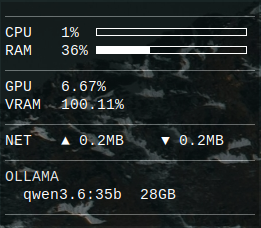
Conky HUD with qwen3.6:35b loaded - VRAM pegged at 100%, but still running because the model spills into GTT memory
AI setup: Vulkan, skip ROCm
Vulkan and ROCm are the software interfaces apps use to talk to AMD GPUs (including our iGPU).
Vulkan is the backend that makes sense, and there’s no setup required with ollama. Ollama added Vulkan support (opt-in) in the Nov 2025 release - 0.12.11 - and made it the default backend in v0.30, released May 2026. OLLAMA_VULKAN=1 now does nothing, the config flag only works to disable vulkan: OLLAMA_VULKAN=0. What does matter on Linux is having a Vulkan driver present which you can do by installing Mesa RADV.
To confirm whether Ollama is offloading fully to the GPU - check Ollama’s own logs. journalctl -u ollama -f if it’s a systemd service, ~/.ollama/logs/server.log or the terminal output.
msg="gpu memory" library=Vulkan available="37.6 GiB" free="38.1 GiB"
msg="offloaded 41/41 layers to GPU"
41/41 layers on a 35b = fully on GPU. This is the number to confirm, if you have multiple layers spilling back to CPU that will cause performance issues. Sometimes 1 (e.g., 40/41) is normal and expected.
ROCm (AMD’s software) - I’d skip it.
There’s the additional setup hassle, support varies from hardware to hardware and it depends on what OS you’re running. 780M is gfx1103, not officially supported with ROCm so you have to adjust HSA_OVERRIDE_GFX_VERSION to pretend it’s a 7900 XTX.
The main reason why ROCm isn’t worth the hassle, is there are no performance gains if you’re running LLMs on an iGPU & RAM (i.e., not a dedicated graphics card).
Token generation using iGPU & RAM is memory-bandwidth bound, not compute bound. To emit one token the GPU streams the whole model through the same DDR5 as the CPU, so speed generally is bandwidth ÷ model size. For example: qwen3.5:9b (6.6GB, fully offloaded), benchmarks run at ~12 t/s. 12 t/s x 6.6GB = 79 GB/s, vs dual-channel DDR5-5600 theoretical peak 89.6 GB/s. What does this mean? Vulkan is already pulling ~88% of what the iGPU > RAM bus can physically deliver. ROCm can only improve the last ~12%, which includes overheads processing the data coming back from RAM, leaving a very thin margin for ROCm to improve on. Therefore, ROCm is unlikely to increase performance.
Honest caveats: Bandwidth calculations are rough math, and I haven’t tested ROCm to compare results directly since I ran into issues getting it working. The case still stands on the iGPU > CPU Bandwidth being the bottleneck. ROCm could still plausibly win with prompt processing, which unlike generation genuinely is compute-bound. If you’re feeding your models enormous prompts, and you’re not getting much output back, ROCm might be worth trying.
Mini PCs running an iGPU are bandwidth-starved from CPU > RAM, so straying from the default software wont help. Using Vulkan or ROCm will produce marginal real world difference. What does help is how many bytes a model reads per token, which leads us to testing MoE (Mixture of Experts) models in the section below.
Benchmarks
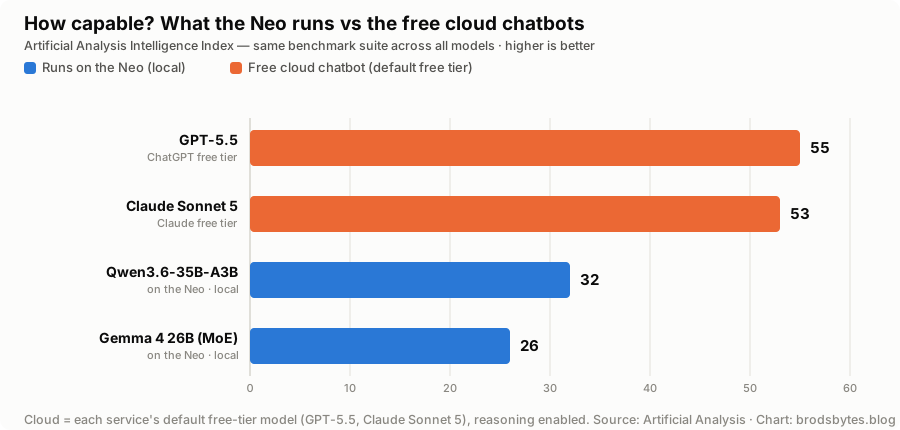
Artificial Analysis Intelligence Index, July 2026.
A rough sense of scale: the free ChatGPT and Claude models still out-think anything the Neo runs - but Gemma4:26b and Qwen3.6-35B-A3B lead the local models I can run on this box: ~60% of a frontier free-tier chatbot, no paywall limits and fully offline. General reasoning is more Gemma4, coding is more Qwen3.6.
As frontier models get more intelligent, local models are quietly keeping up, and upgrading your open source local LLM is free. Qwen3.6-35B-A3B is a like-for-like replacement for the 3.5 it replaced: both 35B-A3B shape, ~3B active per token and 24GB on disk. Same bytes through the bottleneck, so the same ~17.8 t/s. Here’s the performance increase with one point release, from Qwen’s own model card:
| Benchmark | Qwen3.5-35B-A3B | Qwen3.6-35B-A3B |
|---|---|---|
| SWE-bench Verified | 70.0 | 73.4 |
| LiveCodeBench v6 | 74.6 | 80.4 |
| Terminal-Bench 2.0 | 40.5 | 51.5 |
| MCPMark (tool use) | 27.0 | 37.0 |
Why I bring this up is because, I made a bit of a bet that these models would continue improving at similar rates of frontier models, which so far coming good. Upgrading to a new model is free and takes as long as the model downloads to your system.
Onto my actual benchmarks
At the time of writing, here are the models I have on my system benchmarked. To test these models, I used the same fixed prompt every run, num_predict=512, temperature=0, via the ollama HTTP API.
These are short prompt runs (512 tokens), on a fresh session with 0 context. Speeds drop as context fills, so a long coding session with tens of thousands of tokens in the window will generate noticeably slower than the figures below. Also, The MoE speed advantage gap will close as context grows. Still a valid speed check and comparison across all the models.
| Model | Params | Active | Quant | Size | Generation (t/s) |
|---|---|---|---|---|---|
| gemma4:e4b | 8.0B | ~4B | Q4_K_M | 9.6GB | 19.0 |
| gemma4:26b (MoE) | 25.8B | ~4B | Q4_K_M | 18GB | 18.7 |
| qwen3.6:35b (MoE) | 36.0B | ~3B | Q4_K_M | 24GB | 17.8 |
| qwen3.6:35b-opencoder (MoE) | 36.0B | ~3B | Q4_K_M | 24GB | 16.7 |
| qwen3.5:9b | 9.7B | dense | Q4_K_M | 6.6GB | 12.0 |
| devstral-small-2:24b | 24B | dense | Q4_K_M | 15GB | 5.5 |
| gemma4:31b | 31.3B | dense | Q4_K_M | 20GB | 3.8 |
Every model here ran fully on the iGPU - no layers spilled back to the CPU which makes this an even enough comparison. qwen3.6:35b-opencoder is the same base qwen3.6:35b, with double the default context window to 128k num_ctx 131072 plus a generic “keep reasoning concise” system prompt to help reduce thinking tokens over time.
Every model here is the default ollama tag, and every one of them is Q4_K_M. Same quantisation across the board. No numbers are changed by quant size. (You can check your own with ollama show <model>)
MoE is the pick: active params matter - not size or quants
Mixture of Experts (MoE) is the way on this setup. gemma4:26b (26B, MoE) generates at 18.7 t/s - 5× faster than the dense gemma4:31b (3.8 t/s) despite being about the same size. Mixture of Experts is a way of dividing tasks among many different sub-models (aka experts). This increases the performance because only a fraction of the full model parameters are being executed at the same time.
Why it’s good in our case specifically: what costs speed is active params per token, RAM is the resource in surplus and bandwidth is the bottleneck. MoE can load the entire model while only sending smaller amounts through the bandwidth bottleneck.
The dense models are all sitting on the bandwidth ceiling.
Remember bandwidth ÷ model size from the ROCm section. Run it against every dense model in the table:
| Model | Size | Predicted | Measured | % of ceiling |
|---|---|---|---|---|
| qwen3.5:9b | 6.6GB | 13.6 t/s | 12.0 | 88% |
| devstral-small-2:24b | 15GB | 6.0 t/s | 5.5 | 92% |
| gemma4:31b | 20GB | 4.5 t/s | 3.8 | 85% |
Three dense models, 6.6GB to 20GB, all landing at 76-83 GB/s effective. That’s our RAM to CPU/iGPU bus bandwidth being saturated. It’s generating tokens at the rate the math says.
How MoE models achieve better performance
Same calculation on the MoE rows is where it gets interesting. gemma4:26b at 18GB × 18.7 t/s implies 337 GB/s. qwen3.6:35b at 24GB × 17.8 t/s implies 427 GB/s. The Neo can’t do that, dual-channel DDR5-5600 tops out at 89.6 GB/s which is our limit. So these models are obviously not reading the whole file per token, which is the Mixture of Experts (MoE) in action.
So how much are they reading? Turn the sum around. Instead of dividing bandwidth by file size to predict speed, divide it by the speed I measured - that gives the bytes each model actually pulls out of RAM to produce one token:
| Model | Bytes read per token | % of the file |
|---|---|---|
| gemma4:e4b | 4.2 GB | 43% |
| gemma4:26b (MoE) | 4.2 GB | 23% |
| qwen3.6:35b (MoE) | 4.4 GB | 19% |
| qwen3.6:35b-opencoder (MoE) | 4.7 GB | 20% |
| qwen3.5:9b (dense) | 6.6 GB | 100% |
Two things fall out of this. qwen3.5:9b lands on 6.6GB - exactly its file size. That’s the control in the chart showing the method works: a dense model reads all of itself, every single token. And every fast model on the box reads roughly the same 4.2-4.7GB, whether it’s 8B or 36B. That’s why gemma4:26b and qwen3.6:35b run at nearly the same speed despite one being a third bigger on disk. Same bytes moved, same speed.
gemma4:e4b pulls the same trick under a different name - the “E” is for effective: 8B on paper, only ~4B live per token.
One surprise: “3B active” doesn’t mean 3B worth of bytes. qwen3.6:35b only activates 3B of its 36B params (8%), but still reads 19% of the file. The attention layers and embeddings get pulled every token no matter which experts the model picks, so you move roughly double what the marketing number suggests.
Wrapping up the benchmark speeds
Dense reads everything, My MoE models read about a fifth. Every model here is Q4_K_M, so the quant isn’t changing any of the numbers.
qwen3.5:9b is not really a good pick for me anymore. I used to use it for some easier tasks, but in reality on a Mini PC it’s slower and much less capable than the bigger, MoE models. The sweet spot for the M4 Neo and similar Mini PCs is MoE models in the 25–35B range. bigger-model answers at smaller-model speeds. Small dense models (gemma4:e4b, qwen3.5:9b) are still reasonably quick for easier tasks and will scale better as the KV Cache grows.
Idle, thermals, power - and the noise
Biggest real-world gripe with the M4 Neo is it’s noisy. Even at idle, and none of the fixes below fully silenced it. The saga went, in order: buy rubber feet to lift it off my desk, notice it didn’t change anything and lay it sideways, contact Bosgame support and replace the new CPU fan they sent, then an aftermarket fan from Lindisparts, then finally repasting the CPU myself. Repasting did drop thermals, but not enough to remove the noise at idle.
Other reviewers have pointed to setting the fan to “quiet” mode in the BIOS, but given the temps I recorded, I’m not keen on starving this thing of air.
The sideway placement mattered as much as thermal paste - Peak temps under load (Psensor - edge = GPU/APU die, Tctl = CPU):
| Setup | GPU edge (peak) | CPU Tctl (peak) |
|---|---|---|
| Flat on desk (on rubber feet), pre-paste | 85°C | 82°C |
| Turned on its side for airflow, pre-paste | 80°C | 80°C |
| Hanging off the back of the desk + repaste | 68°C | 66°C |
Buying rubber feet to rise it off the desk wasn’t enough. Flat still peaked at 85C, and turning it on its side earnt back ~5C. Repasting + hanging it off the back of the desk with the vesa mount bracket is what I landed on. Constant airflow, ~15C cooler peaks than flat, ~56–61C under sustained load. Also quieter because the fan wasn’t directly in front of me.
These are real-world captures, not a controlled bench, so your mileage may vary.
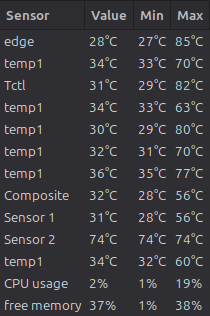
Flat on the desk, pre-paste: GPU edge peaks at 85°C, CPU Tctl at 82°C
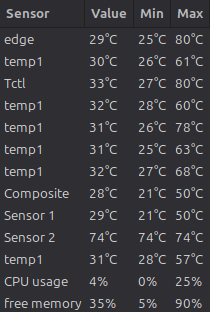
Turned on its side for airflow, pre-paste: peaks drop to ~80°C
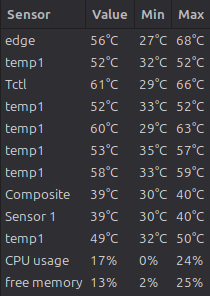
Hanging off the desk back + repasted, mid-run: peaks down to 68°C / 66°C
Running cost: mini PC vs a GPU tower
The local-LLM pitch is a solid “no cloud bill”, but a desktop with a discrete GPU has a real, ongoing electricity cost, especially left on 24/7 to serve models or do other background jobs. I don’t own a wall meter, so I’m not going to pretend I measured this box. But the 7840HS has been measured to death by people who do, at the wall, whole-system. Idle sits at 6–11W, and an all-core CPU burn peaks 77–97W before settling to ~45W sustained once it thermally throttles (ServeTheHome, Beelink SER7; DROIX, UM780 XTX). That all-core figure is the worst case though, and it isn’t what inference actually does - generation is iGPU and memory-bandwidth bound, with the CPU cores mostly sat waiting on RAM. So treat ~90W as a ceiling I never actually hit, not a typical figure.
Compare that to a discrete-GPU desktop: one person actually serving local LLMs off a 7900 XTX clocks their whole box at ~70W idle, rising to 150–250W mid-generation (XDA). Under load it’s worse again: an RTX 4070 alone averages 186W gaming, on top of the rest of the tower (TechPowerUp); a 4090 is a 450W card. The Neo’s worst case - every core burning, ~90W for the entire system - is still less than half what an RTX 4070 pulls on its own.
To be clear, the 4070 here is a stand-in for a mid-range GPU’s power draw, not an even LLM performance comparison. On inference the two barely overlap. Models that fit its 12GB (up to ~14B) are no contest: the 4070’s GDDR6X (504 GB/s) buries the Neo’s dual-channel DDR5-5600 (89.6 GB/s), 5.6× the bandwidth.
But, a 35b at Q4 (~23GB) won’t fit 12GB - it spills across PCIe into system RAM and crawls. That’s where the 64GB of RAM in a Neo comes in, it holds a 35b in unified memory and stays usable, where the 4070 falls off. So it depends. 4070 12GB for small-and-fast, Neo for big-and-usable. You can definitely get a bigger GPU with more VRAM, but the price blows out moving up to a capable 24GB GPU.
Running an illustrative 24/7 cost (mostly idle, ~$0.30/kWh AU): the Neo at ~15W (rounding its 6–11W idle up, to cover a model sitting loaded) comes to ~130 kWh/yr, ~$40/yr. A GPU tower idling at ~70W comes to ~615 kWh/yr, ~$185/yr. That’s roughly $145/yr in the Neo’s favour before running a single prompt, the gap only increases the more you use it. Idle draw varies with drivers, monitors and settings, so treat this like the napkin math it is.
How to get started with local LLMs as a beginner
Ollama for managing and running models. Easy interactive chat and for the local API your projects can use in the background.
Opencode for coding. It gives the model the file discovery, edits and search tools it doesn’t get out of the box, permission controls like per-edit approval. Free, open source, and a solid competitor to Claude Code.
These is the best starting point as a beginner, both of these tools are easy to setup and in most cases don’t require any config changes to get going.
Wrapping up
On a mini PC, generation speed is limited by the RAM bus bandwidth, the journey between the CPU and RAM. Not the CPU, not the iGPU, or the quant. Models that run best on this setup is a MoE in the 25-35B range.
Would I buy the M4 Neo again? Yes. $970 USD for a Mini running 35b-class models at ~18 t/s is a trade I’m happy with.